
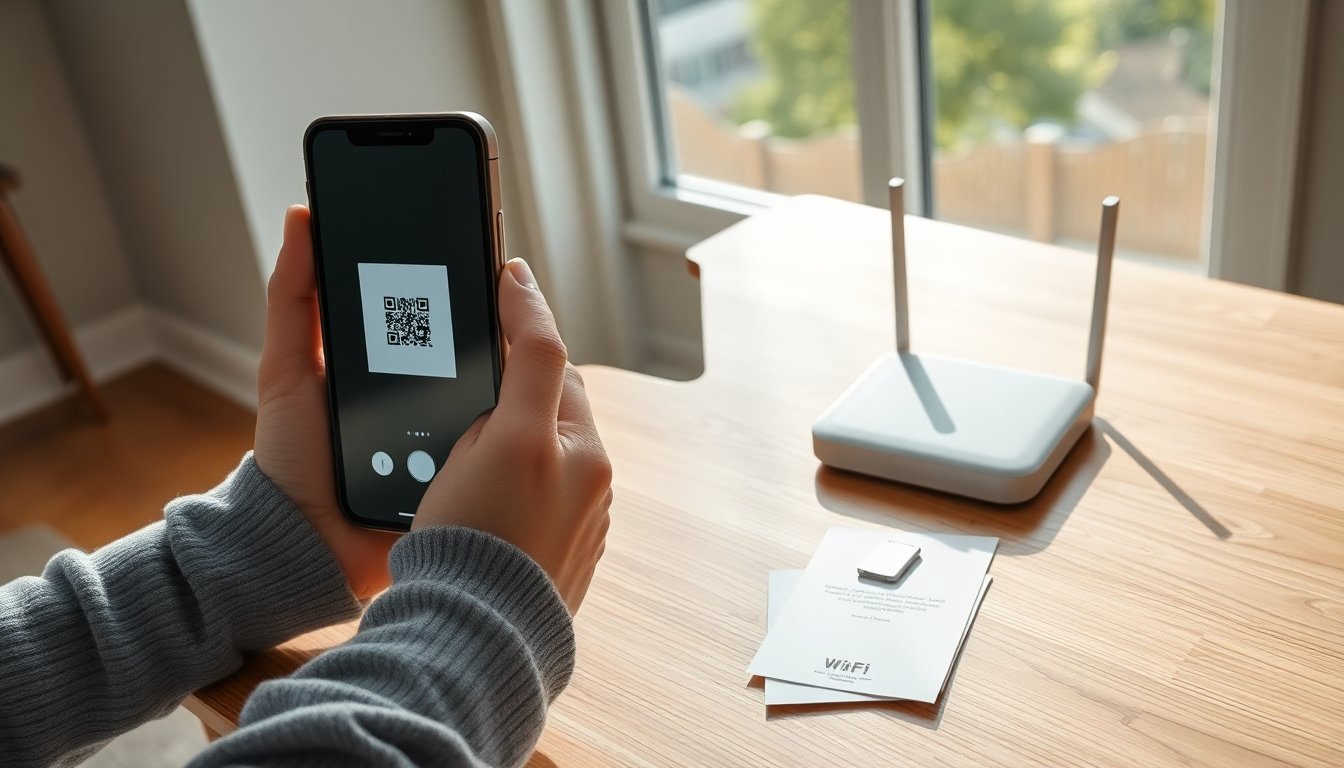
You can activate an eSIM by scanning a carrier QR code, using an activation link, or converting a physical SIM, the exact method depends on the device and provider. This guide walks through compatibility checks, choosing the right eSIM plan, iPhone and Android activation flows, and basic troubleshooting so the phone is talking to the network quickly.
Quick Facts:
- eSIM is a programmable embedded SIM that replaces or complements a physical SIM.
- Most modern iPhones (iOS 16+) and many Android phones (Samsung, Pixel) support eSIM.
- Activation methods include QR code, activation link, carrier app, or SIM transfer.
- Switching between plans usually doesn’t require a physical SIM swap: it takes minutes with a working connection.
Key Takeaways
- Activating an eSIM involves scanning a carrier QR code, using an activation link, or converting a physical SIM, depending on your device and provider.
- Ensure your device is eSIM-compatible and updated to the latest OS to smoothly activate your eSIM.
- Choose the right eSIM plan based on your needs, such as a primary carrier plan, travel plan, or third-party provider.
- iPhone users (iOS 16+) activate eSIM via Settings > Cellular > Add Cellular Plan by scanning a QR code or converting a physical SIM.
- Android users activate eSIM through Settings > Network & internet > SIMs or Mobile network > Add eSIM, following their device-specific steps.
- If activation issues arise, verify QR code validity, restart your device, and check carrier compatibility before contacting support.
Check Compatibility And Prepare Your Device
Before attempting activation, confirm the device is eSIM-capable and running the required OS. For iPhone, iOS 16 or later is commonly needed: for Android, check the manufacturer page (Samsung, Pixel, and many others support eSIM). Also verify the carrier or provider supports eSIM on that exact model.
Steps to prepare:
- Back up important data and ensure the phone is charged.
- Update the device OS to the latest stable release to avoid known bugs.
- Keep a Wi‑Fi connection or existing cellular service available during setup.
If the device was previously carrier‑locked, contact the carrier to confirm it permits eSIM activation: unlocked phones are generally easier to configure.
Choose The Right eSIM Option: Carrier, Travel Plan, Or Third-Party Provider
Decide whether to use the primary carrier, a short‑term travel plan, or a third‑party eSIM provider. Each option fits different needs:
- Carrier eSIM: best for your regular line and billing, typically integrated with account features and voicemail.
- Travel/roaming eSIM: ideal for short trips: usually cheaper for local data but temporary.
- Third‑party providers: often offer flexible data-only plans and easy online activation.
Compare price, data limits, activation method, and refund policies. If the user wants the main phone number transferred, the carrier’s eSIM or an official conversion is the recommended route. Keep account credentials and any IMEI/MEID info handy, providers sometimes ask for them during setup.
Activate eSIM On iPhone (iOS 16+)
iPhones typically support several eSIM workflows: scanning a QR code, tapping an activation link, or converting a physical SIM. Below are the two most common approaches and what to expect.
Use A Carrier QR Code Or Activation Link
- Open Settings > Cellular > Add Cellular Plan.
- Scan the carrier’s QR code or paste the activation URL when prompted.
- Follow on‑screen labels to name the line (Primary, Business, Travel) and set default voice/data preferences.
Activation often completes within minutes: a reboot might be required. If prompted for a confirmation code, get it from the carrier’s account page or support chat. For eSIMs tied to an account, the carrier may complete activation remotely after the QR code is scanned.
Transfer Or Convert A Physical SIM To eSIM
- Settings > Cellular > Convert Physical SIM (or Transfer from Nearby iPhone).
- Follow prompts to confirm the phone number and carrier account.
- Wait for the carrier to finish provisioning: keep the device online.
Conversion preserves the number and billing. If the process stalls, remove and reinsert the physical SIM only after the carrier confirms the eSIM is active.
Activate eSIM On Android (Samsung, Pixel, And Other Brands)
Android manufacturers vary in menus but the basic flow is similar: Settings > Network & internet > SIMs or Mobile network > Add eSIM. Use the carrier’s QR code, activation link, or the carrier app.
Key points by brand:
- Samsung: open Settings > Connections > SIM card manager > Add mobile plan, then scan the QR. Samsung may show a progress bar while downloading profile.
- Google Pixel: Settings > Network & internet > Add eSIM: Pixel supports eSIM transfer from another Pixel in some cases.
- Other brands: look for “eSIM,” “Add mobile plan,” or consult the support site.
After adding the profile, assign the eSIM for calls and data, and restart if the phone doesn’t register on the network. Keep the QR code or activation link available until the phone shows signal.
Troubleshooting Common Activation Issues And When To Contact Support
If activation fails, try these quick fixes before calling support:
- Confirm the QR code or activation link hasn’t expired: request a new one if needed.
- Toggle Airplane Mode or restart the phone to force a network refresh.
- Ensure the device date/time is correct and that Wi‑Fi is available during setup.
- Remove any old eSIM profiles that conflict with the new plan.
Common error messages include “Activation failed,” “No service,” or “Profile download error.” If fixes don’t help, contact the provider with the device model, IMEI, and a screenshot of the error. For number transfers or billing issues, contact the original carrier and the new provider: they often need to coordinate the porting process. When dealing with travel eSIMs, check the provider’s coverage map, lack of local carrier agreements is a frequent cause of no service.
FAQ
What if the phone still shows no service after activation?
Check the eSIM profile is enabled, restart the device, and confirm the provider shows service for that location. If it persists, request a fresh activation link from the provider.
Can an eSIM hold multiple plans?
Yes: many phones support multiple eSIM profiles but only one active cellular data plan at a time. Users can switch between profiles in settings.
Is converting a physical SIM to eSIM reversible?
Often yes, carriers can reissue a physical SIM or reactivate the original SIM, but procedures vary: ask the carrier for details.
Will switching to eSIM affect my phone number?
If converting via your carrier, the number remains the same. For new or travel eSIMs, the provider usually issues a different number unless a port is requested.
Frequently Asked Questions about How to Activate eSIM
What devices support eSIM activation?
Most modern iPhones running iOS 16 or later and many Android phones like Samsung and Google Pixel support eSIM activation, but you should check your device and carrier compatibility first.
How do I activate an eSIM on my iPhone?
On iPhone, go to Settings > Cellular > Add Cellular Plan, then scan the carrier QR code or enter an activation link. Follow prompts to name the plan and set preferences. A reboot may be needed to complete activation.
Can I switch between multiple eSIM plans on one phone?
Yes, many phones support multiple eSIM profiles, but only one cellular data plan can be active at a time. You can switch between them easily within your phone’s settings.
What should I do if my eSIM activation fails or shows no service?
Try toggling Airplane Mode, restarting your phone, confirming the QR code hasn’t expired, and ensuring correct date/time and Wi-Fi connection. If problems persist, contact your carrier with device details for support.
Is switching from a physical SIM to an eSIM reversible?
Often yes, carriers can reissue your physical SIM or reactivate it, but policies vary by provider. Contact your carrier to confirm the process and options available.
What are the advantages of using an eSIM over a physical SIM?
eSIMs enable quick switching between plans without swapping cards, support multiple profiles on one device, and are convenient for travel plans or data-only providers, offering greater flexibility and ease of use.


