Learning how to live stream begins with defining who will watch, what will be shown, and which platform matches that audience. This starter guide answers those core choices and leads into the gear, software, and a concrete setup sequence to get a reliable, low-latency broadcast live quickly.
Key Takeaways
- Successful live streaming starts by defining your audience, format, and the right platform to match your content and interaction needs.
- Prioritize audio quality and stable upload speed when choosing your gear and setting up your stream for professional results.
- Use reliable hardware encoders and balance bitrate and latency to optimize stream quality without overloading your CPU.
- Follow a clear step-by-step setup process including device connection, encoder configuration, and thorough test streams to ensure a smooth broadcast.
- Effective scene management and audio control, including compressors and labeled scenes, minimize errors and enhance viewer experience during live streams.
Define Your Stream: Audience, Format, And Platform
Quick Facts
- Live streams perform best when the audience and format (talk, gameplay, event, workshop) align with the platform.
- Latency and interactivity needs determine whether to use low-latency CDNs or standard platforms.
- Budget influences gear choices but good streams require attention to audio first, then video.
Every successful stream starts with three decisions: who, what, and where. First, identify the audience: casual viewers, subscribers, teammates, or students. Each group tolerates different production values and interaction levels. Next, pick the format, single-host talk, interview, tutorial, live event, or gameplay, because format dictates layout, camera count, and scene switching.
Finally, choose the platform (YouTube, Twitch, Facebook Live, LinkedIn Live, a paid webinar CDN, or a custom RTMP endpoint). If the stream needs low latency for two-way chat or live auctions, select platforms or CDNs that advertise sub-2-second latency or use WebRTC-based services. For discoverability and long-term archives, mainstream platforms often win: for paid or private broadcasts, use a gated CDN or streaming service. Bold decisions here simplify later technical setup and gear selection.
Essential Gear And Software — From Budget To Pro
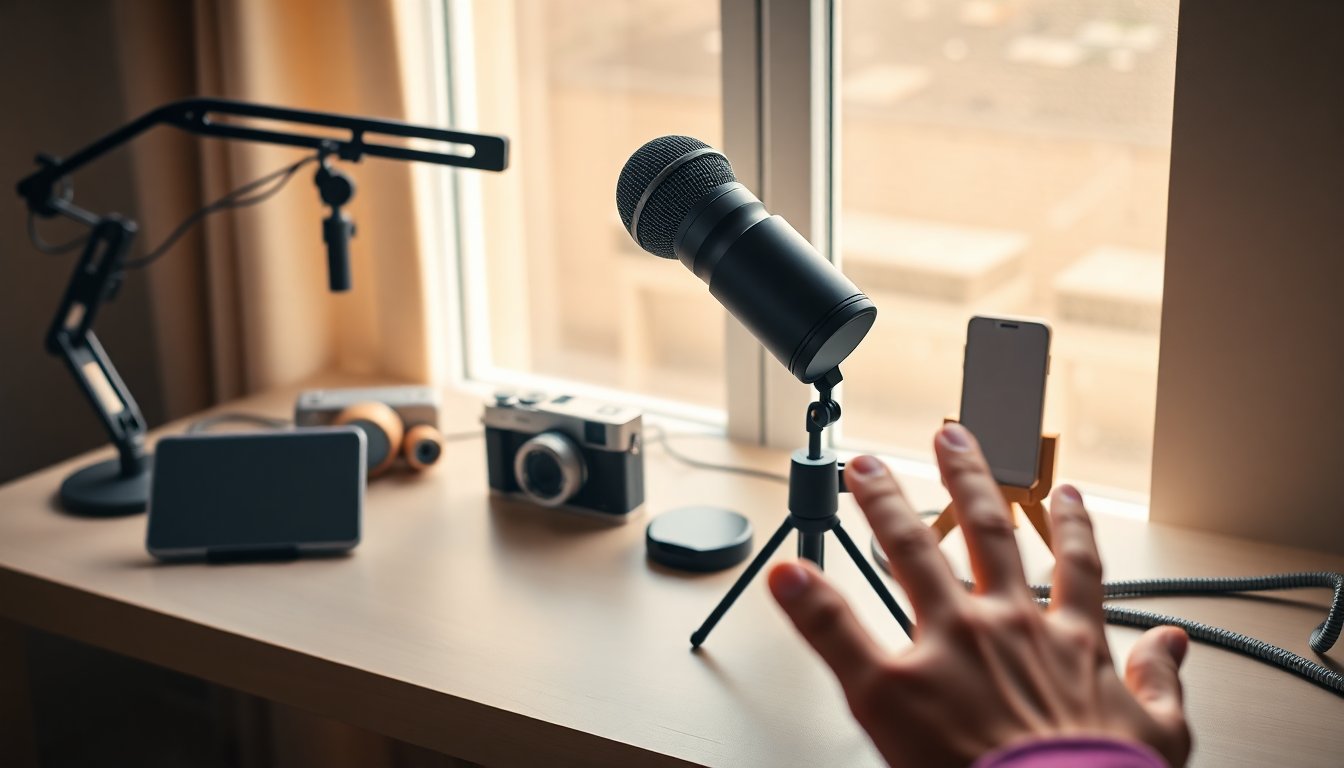
Good impressions come from sound and stability, not the most expensive cameras. On a budget, a solid USB microphone or lavalier, a phone with a tripod, and free streaming software cover most needs. Mid-range setups add a dedicated camera (mirrorless or webcam like the Logitech StreamCam), an audio interface or mixer for XLR microphones, and a capture card if streaming console or DSLR footage. Pro rigs include multiple cameras, an ATEM-style hardware switcher, AES/analog audio routing, and redundant encoding.
Software choices matter: OBS Studio (free) supports scenes, layered sources, and plugins: Streamlabs and vMix add convenience and cloud features: hardware encoders (Teradek, Epiphan) offload CPU work for high-reliability events. Also consider a streaming-friendly computer: a recent multi-core CPU, 16+ GB RAM, and NVMe storage. For network, aim for at least upload speeds 1.5–3× the target bitrate and use wired Ethernet over Wi‑Fi when possible. Finally, include accessories: good lighting (softbox or LED panel), mic stand, shock mount, and spare cables. Bold two terms per section: audio and upload.
Step-By-Step Setup: Connect, Configure, And Test
The practical setup is a short list of repeatable steps to get live with confidence. Below are seven steps that cover physical connections, software configuration, and verification.
- Plan scenes and assets. Create a simple scene list, intro, live content, intermission, and ending, then gather overlays, lower-thirds, and media.
- Connect devices. Plug cameras, mics, and capture cards into the streaming PC or encoder: prefer USB 3.0 or Thunderbolt for reliability.
- Network first. Connect via wired Ethernet, run an upload speed test, and reserve 1.5–3× your bitrate for headroom.
- Configure encoder settings. Enter the stream key on the platform and set base/output resolution and frame rate to match your cameras.
- Balance audio levels. Use a headset to monitor and aim for steady peaks around -6 to -3 dB: avoid clipping.
- Do a private test stream. Verify scene transitions, overlays, upstream stability, and viewer chat behavior in a test or unlisted stream.
- Go live with a countdown. Start with a short intro and confirm chat connectivity, then move into the main scene.
Throughout setup, label cables and save scene collections, small habits that reduce errors under pressure. Bold terms: encoder and test.
Encoding, Bitrate, And Latency: Optimizing Stream Quality
Encoding choices balance quality, latency, and CPU usage. Hardware encoders (NVENC, Quick Sync) free the CPU and are recommended for single-PC streaming: software x264 can give slightly better quality at the cost of CPU cycles. Choose a bitrate based on resolution and frame rate: for 1080p60, target 6,000–8,000 kbps on platforms that allow it: for 720p30, 2,500–4,000 kbps is common. Always leave upload headroom, don’t push to the absolute measured maximum.
Latency settings matter: choose a low-latency preset for interactive streams but expect slightly lower visual quality or higher CPU usage. Use adaptive bitrate or simulcast (via services or built-in platform features) if you must support mixed connection qualities. Monitor dropped frames and encoder CPU usage during the test stream and reduce resolution or bitrate if problems persist. Bold terms: latency and bitrate.
Audio, Video, And Scene Management For Smooth Production
Audio drives perceived quality, good sound masks modest video. Use pop filters, close miking, and a basic compressor or limiter to smooth dynamics. Route game/system audio and microphone into separate tracks so the mixer can control balance and mute as needed. For video, keep consistent camera framing and a simple color correction LUT to match multiple cameras.
Scene management reduces on-air errors: name scenes clearly (Intro, Guest, Break), use hotkeys for transitions, and keep a spare scene with a still image and music for emergency use. Cue external guests on a separate monitor and test their audio/video before switching them into the main program. If streaming with a partner, assign one person as producer and one as talent, roles help keep flow steady. Bold terms: compressor and scene.
Frequently Asked Questions About How to Live Stream
What are the first steps to start learning how to live stream?
Begin by defining your audience, deciding the format of your stream (such as talk, gameplay, or workshop), and choosing the platform that aligns with your viewers and latency needs.
Which gear is most important for a quality live stream on a budget?
Focus on good audio first with a solid USB microphone or lavalier, use a phone with a tripod for video, and utilize free streaming software to start streaming effectively on a budget.
How do I optimize latency and bitrate for a smooth live stream?
Select a low-latency preset if interaction is key, choose bitrate based on resolution (e.g., 6,000–8,000 kbps for 1080p60), and ensure your upload speed is 1.5–3 times your target bitrate to maintain quality and reduce dropped frames.
What software options are recommended for live streaming beginners and pros?
OBS Studio is a free, powerful choice supporting scenes and plugins; Streamlabs and vMix offer added convenience and cloud features, while hardware encoders like Teradek offload CPU usage for professional reliability.
How can I manage audio and video effectively during a live stream?
Use pop filters and compressors to smooth audio, route microphone and system sounds into separate tracks for control, maintain consistent camera framing with color correction LUTs, and organize scenes clearly for seamless transitions.
Why should I use wired Ethernet instead of Wi-Fi for live streaming?
Wired Ethernet provides a more stable and reliable connection with consistent upload speeds, reducing interruptions and latency compared to Wi-Fi, which is essential for quality live streaming.